
How to delete old emails in Gmail
Years of accumulated emails taking up space and cluttering your inbox? Learn how to find and remove old emails in Gmail using date filters and how Deleteazy does it in seconds.
Why are old emails a problem?
Old emails silently pile up over years and consume a large part of your free 15 GB of Google storage. Social media notifications, old promotions, newsletters you never read, all of it sits there taking up space and making your inbox impossible to organize.
The good news is Gmail has powerful date operators to find them. And Deleteazy removes it all at once, without the manual effort.
Step by step in Gmail
- 1.Use the date filter.
In Gmail's search bar, type before:2023/01/01 to find all emails before that date.
- 2.Refine with other filters.
Combine with is:unread, has:attachment, or category:promotions for more precise results.
- 3.Select all results.
Check the checkbox at the top and click 'Select all conversations that match this search'.
- 4.Move to Trash and empty it.
Click the trash icon and confirm. Then empty the Trash to permanently free up storage.
⚠️ Gmail processes only 50 emails at a time and frequently freezes on large inboxes. For years of accumulated emails, you'll need to repeat the process dozens of times.
Useful date filters in Gmail
Gmail has powerful operators to find emails by date. Use these examples as a starting point:
- •
before:2022/06/01— Emails before June 2022. - •
before:2023/01/01 is:unread— Old and unread emails. - •
before:2023/01/01 category:promotions— Old promotional emails. - •
before:2023/01/01 category:social— Old social media notifications. - •
older_than:2y— Emails older than 2 years. - •
older_than:1y has:attachment larger:5M— Old emails with large attachments.
How to do it with Deleteazy
With Deleteazy you select the date range, review the found emails, and delete everything at once — no manual filters, no batch limitations:
- 1.Connect your Google account.
Secure OAuth login — we never store your emails or passwords.
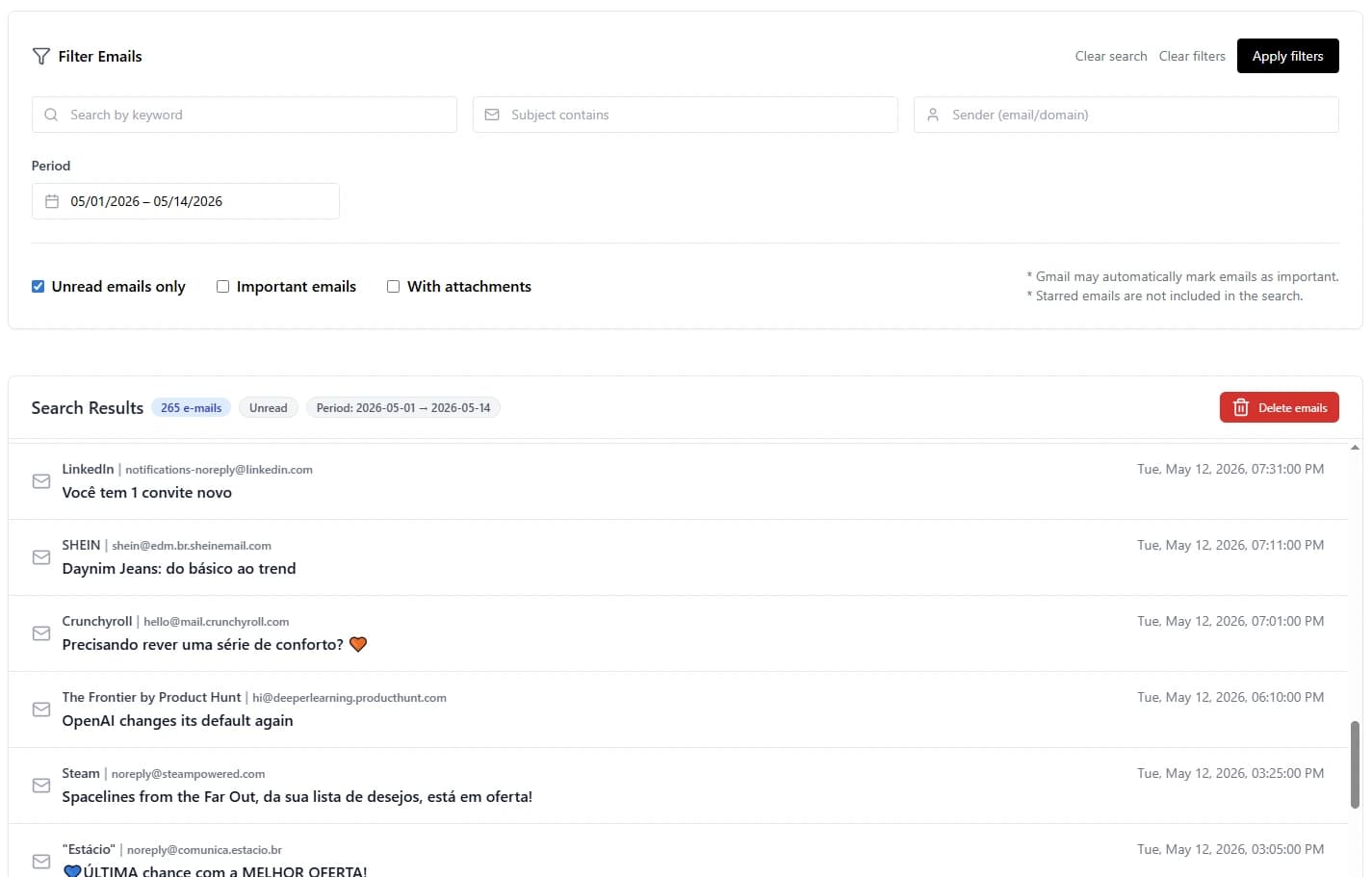
- 2.Set the date range in the filter.
In the filter panel, set the start and end dates. Combine with sender, subject, or attachments, for example, to be even more precise.
- 3.Review the list before deleting.
Deleteazy shows all matched emails with sender, subject, date, and a body preview. Browse through pages and select individually or all at once.
- 4.Confirm and track in real time.
A confirmation modal shows a summary of your selection. After confirming, you follow the deletion progress with real-time stats.
Common questions
Is it safe to delete old emails?
Yes, as long as you review the results before confirming. Deleteazy shows a full preview before any deletion, and emails go to Trash first — so you have 30 days to recover anything deleted by mistake.
Can I recover old emails after deleting them?
Yes, as long as they're in Trash. Gmail keeps emails in Trash for 30 days before permanent deletion. After that period or if you empty Trash manually, deletion is final.
What's the fastest way to delete old emails?
With Deleteazy. Set the date range, review the found emails, and delete everything in one click — no manual filters, no repeating the process.
Does deleting old emails free up Google storage?
Yes! Emails, especially with attachments, consume your free 15 GB of Google storage. Deleting and emptying the Trash frees that space for Gmail, Drive, and Photos.