
How to delete all emails from one sender in Gmail
Receiving too many emails from the same sender and want to get rid of them all? Follow the step-by-step guide in Gmail and learn how to do it in seconds with Deleteazy.
Why is it hard to delete emails from one sender in Gmail?
Gmail lets you search by sender using the from: operator, but deletion is still manual and limited to 50 emails at a time. If you've received hundreds or thousands of messages from the same contact, the process becomes a slow and repetitive task.
Below you'll see the native Gmail way and then how Deleteazy solves this much faster.
Step by step using Gmail
- 1.Search for the sender.
In the Gmail search bar, type from:email@example.com to list all emails from that sender.
- 2.Select all emails.
Click the checkbox at the top of the list. If there are more than 50 results, click 'Select all conversations that match this search'.
- 3.Delete the emails.
Click the trash icon to move all selected emails to the trash.
- 4.Empty the trash.
Go to the trash and click 'Empty trash now' to permanently free up the space.
⚠️ For inboxes with many emails, Gmail often freezes or processes only the first batch. You will need to repeat the process several times until everything is cleaned up.
Useful advanced filters in Gmail
Combine the from: operator with other filters to narrow down your search even further:
- •
from:email@exemplo.com before:2024/01/01— Emails from a sender before a specific date. - •
from:email@exemplo.com has:attachment— Only emails with attachments from that sender. - •
from:email@exemplo.com is:unread— Only unread emails from that sender. - •
from:email@exemplo.com larger:5M— Emails larger than 5 MB from that sender.
How to do this with Deleteazy
With Deleteazy you do the same thing in seconds, with no batch limits and a preview before deleting:
- 1.Connect your Google account.
Secure login via OAuth — we never store your emails or passwords.
- 2.Enter the sender in the filter.
In the filter panel, enter the sender's address or domain. Combine with date range, keywords, or attachments to be even more precise.
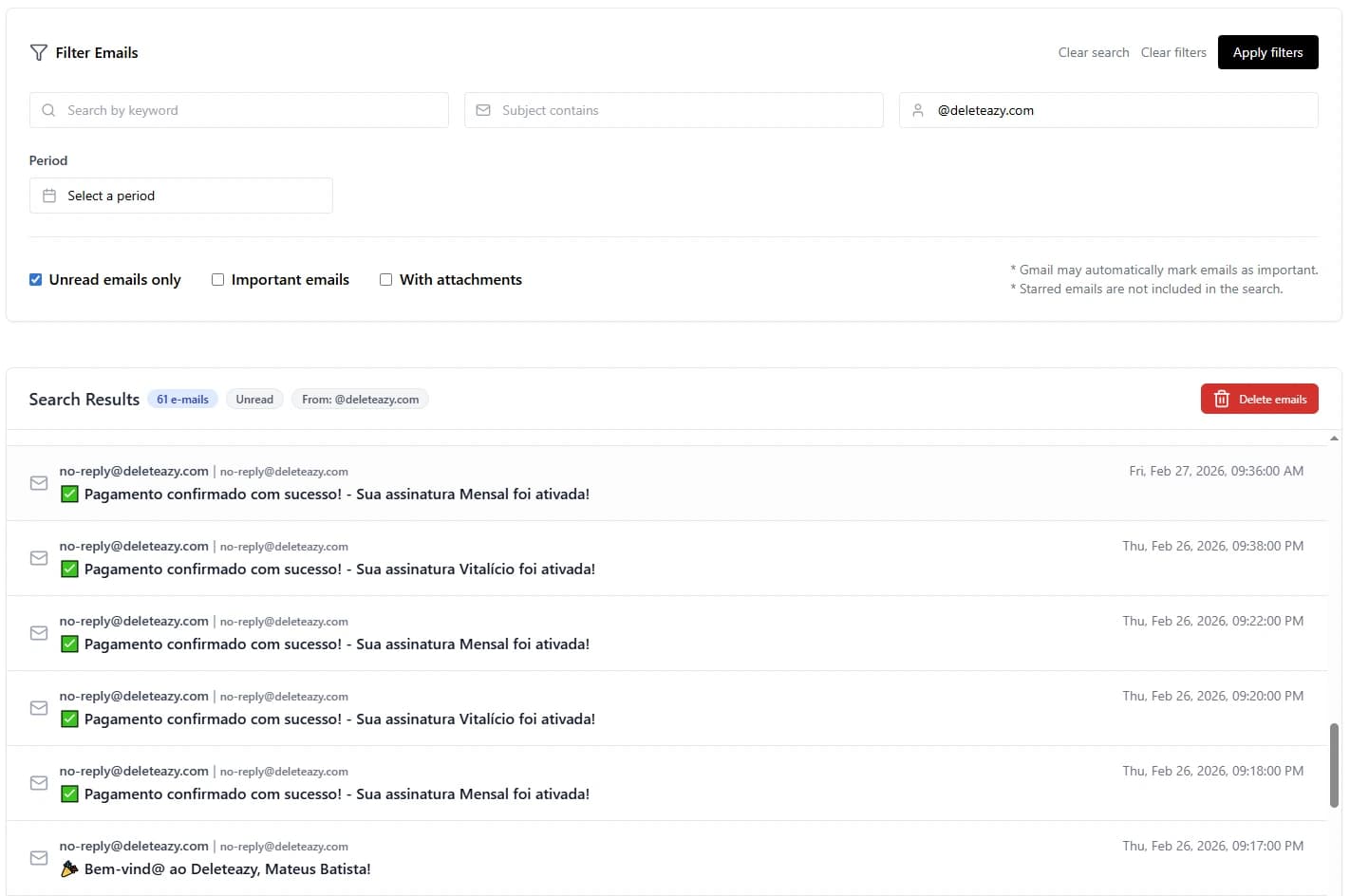
- 3.Review the list before deleting.
Deleteazy displays all found emails with sender, subject, date, and a body preview. Browse through the pages to verify what will be removed.
- 4.Confirm and follow progress in real time.
A confirmation modal shows a summary of your selection. After confirming, you can follow the progress with real-time statistics.
Frequently asked questions
Can I delete emails from multiple senders at once?
With native Gmail you need to search one sender at a time. With Deleteazy you can combine sender filters with other criteria and clean everything up in a single operation.
Can deleted emails be recovered?
Yes, as long as they are still in the trash. After 30 days, or if the trash is emptied manually, emails are permanently removed.
How do I stop a sender from emailing me?
Open an email from the sender, click the three dots, and select 'Block'. If it's a newsletter, look for the unsubscribe link at the bottom of the email.
Does Deleteazy work with any sender or domain?
Yes. You can filter by full address (contact@company.com) or by entire domain (@company.com), deleting all emails from that source at once.