
How to delete bulk emails in Gmail
Gmail's built-in tools only let you delete 50 emails per page. Here's the fastest way to clean thousands of emails at once, with and without Deleteazy.
The problem: Gmail wasn't built for bulk deletion
If you've ever tried to delete a large number of emails in Gmail, you already know the frustration. Gmail displays 50 emails per page and even when you select all of them and click "Select all conversations", the experience is slow, confusing, and often fails mid-way.
For someone with 5,000, 20,000 or even 100,000 unread emails, doing this manually is simply not realistic. It would take hours or days.
The native Gmail method (and its limits)
Here's how most people try to delete emails in bulk using Gmail natively:
- 1.Open Gmail and apply a search filter.
Use the search bar to find emails you want to delete, for example, type "from:newsletter@example.com" or "before:2022/01/01".
- 2.Click the checkbox at the top to select all 50 visible emails.
A banner will appear saying "Select all conversations that match this search." Click it to attempt to select everything.
- 3.Click the Trash icon.
Gmail will begin moving emails to Trash. For large volumes, this step can take several minutes or time out entirely.
- 4.Empty the Trash.
Go to Trash and click "Empty Trash now" to permanently delete the emails and free up storage.
⚠️ Gmail's interface wasn't designed for large-scale deletion. Selecting "all conversations" sometimes only processes the first batch, the page can freeze, and you'll need to repeat the process dozens of times. For inboxes with tens of thousands of emails, it becomes almost impossible.
The faster way: using Deleteazy
That's exactly why we built Deleteazy. It connects securely to your Gmail account via Google's official API and lets you delete emails in bulk with precision filters in seconds.
guide.storage.s_deleteazy.intro
- 1.Connect your Google account.
Secure OAuth login, we never store your emails or passwords.
- 2.Set up your filters.
Filter by sender, subject, keyword, date range, attachment presence, or read/unread status. Combine as many filters as you need for precision.
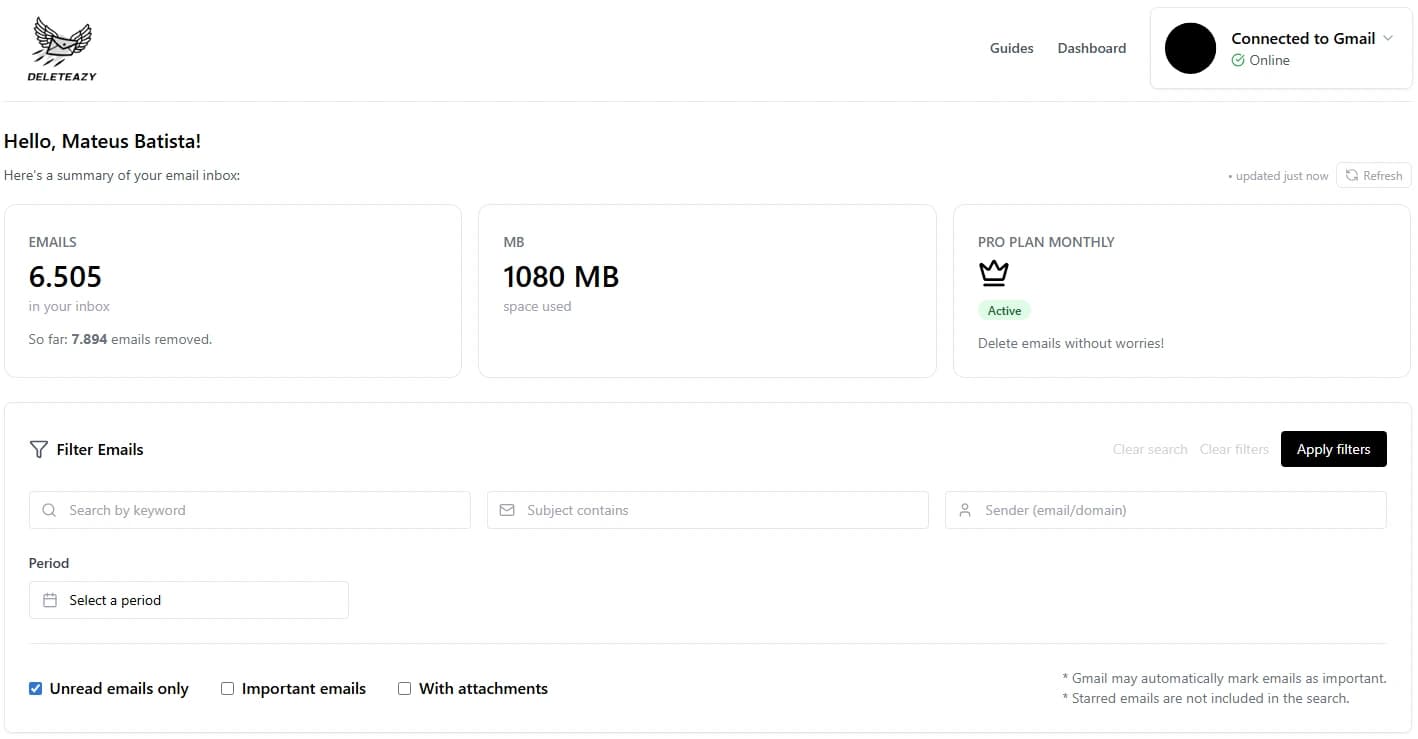
- 3.Review the paginated list before deleting.
Before any deletion, Deleteazy shows you the matched emails with sender, subject, date, and a body preview. Browse through pages, review what will be removed, and select individually or all at once.
- 4.Confirm and track in real time.
A confirmation modal shows a summary of your selection. After confirming, you follow the deletion progress in real time, with stats on how many emails were successfully removed.
What kinds of emails can you delete in bulk?
Whether you want to clean a specific category or your entire inbox, Deleteazy handles it:
- •Newsletters: Delete every email from a newsletter you've been ignoring for years.
- •Promotional emails: Clean the entire Promotions tab in one shot.
- •Old emails: Remove everything before a specific date, starting a fresh start.
- •Emails from one sender: Target a single sender and delete all their messages at once.
- •Unread emails: Mass-delete every unread email that's been sitting there for months.
- •Emails with attachments: Find and remove large emails that are eating up your storage.
Is it safe to use a third-party tool for Gmail?
Yes, as long as the tool uses Google's official OAuth authentication, which Deleteazy does. This means:
- •You log in directly through Google, we never see your password.
- •We don't store the content of your emails.
- •You can revoke access to Deleteazy from your Google Account at any time.
- •All deletions are performed through Gmail's official API.
The warning you may see when logging in ("App not verified") is standard for any third-party Gmail tool and doesn't mean the app is unsafe, it simply means it hasn't yet completed Google's formal review process.
Can I recover emails after deleting them?
When Deleteazy deletes emails, they are moved to your Gmail Trash first, just like Gmail's native delete. Emails stay in Trash for 30 days before being permanently removed. During that window, you can recover them directly from Gmail.
Once you empty the Trash or after 30 days, deletion is permanent. Always double-check your filters before confirming a bulk deletion.
Common questions
How many emails can Deleteazy delete at once?
There's no limit. Whether you have 1,000 or 100,000 emails, Deleteazy processes them all without needing you to repeat any steps.
Do I need to select the emails one by one before deleting?
No. Deleteazy applies the configured filters and deletes all matching emails at once. You don't need to select anything manually.
Will deleting emails affect my Google Drive or Google Photos?
No. Deleteazy only interacts with your Gmail inbox. Google Drive and Photos are completely separate.
Is there a free plan?
Yes, Deleteazy has a free plan that lets you get started without any credit card. Paid plans unlock unlimited deletion and advanced automation.